
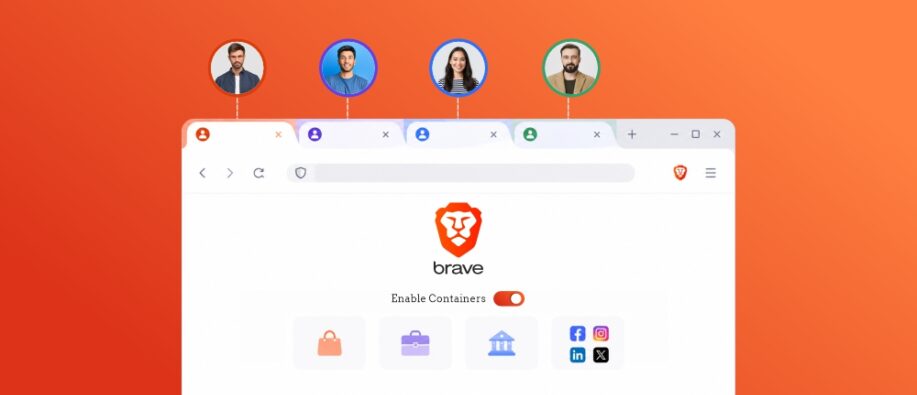
Brave, the free and popular open-source browser, has introduced Containers in the Brave browser (V1.92) on July 2, 2026. The highly requested privacy and productivity feature aims to offer convenience and ease of use for everyday tasks. Containers are built into Brave 1.92 on all desktop platforms, including Windows, macOS, and Linux, with no extensions or addons. The feature is rolling out in phases over the next few days.
Containers are ideal for those looking to switch between personal, developer, work, or creator accounts. Once Containers are enabled, users can open tabs in separate spaces where cookies and storage are isolated from other containers.
As stated by Brave Browser, "Containers are a way for users to isolate tabs from one another so that their cookies and storage are not shared outside of the container, even when visiting the same site."
One Browser, Countless Identities: How Do Containers Actually Work?
The Container feature stands out because it allows users to create isolated browsing environments where cookies, login sessions, and site data remain separate. With this, users can stay signed in to multiple accounts on the same website at the same time without conflicting sessions.
The browser comes with four default container categories including Personal, Work, Social, and School. Users can also create custom categories with unique names, colors, and icons by clicking on "Add New Container."
Who Benefits Most from Containers?
For example:
- A marketing manager can make use of this feature to log into two different social media accounts at once.
- A developer can use containers to test an application with one tab logged in as an administrator and another as a regular user.
- An employee who is logged into their Google account can open YouTube in a separate container to hide their viewing history, and it isn’t linked to their work account.
Getting Started with Containers in Three Steps
Users can follow the steps mentioned below to get started with the containers.
- Go to Settings (brave://settings/braveContent).
- Click on Enable Containers.
- Another option is to right-click on “Open in Container,” and select the category.
Brave positions Containers as the best convenience feature. Alongside, a key security enhancement for enterprises relying on multiple accounts. The idea first came about when browsers enabled different sites to share storage via third-party cookies and similar mechanisms.
Browser-level isolation helps prevent cookies and session data from spreading across different services. The addition of containers to Brave browser is a significant initiative towards browser security and a privacy-focused choice for both individual users and organizations. The new features differentiate itself from the competitive industry by combining privacy, productivity, and enterprise security into a built-in one.
To read all the trending news around the tech landscape, visit our website now!
Also Read:
Microsoft Scout Explained: The Always-On Autonomous Agent for Your Workflows