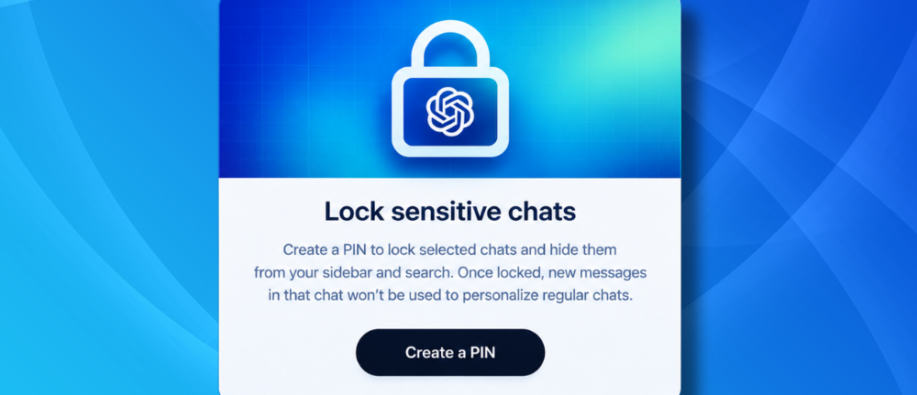
Do you know there's good news for ChatGPT users? ChatGPT, launched in late 2022, has become a go-to companion for many people's private and professional routine. ChatGPT now lets you lock conversations to keep sensitive chats private when others can access your screen or device. Sometimes you need to keep things personal, like planning a surprise or discussing something important, and you don't want your family or friends to see it.
Now you can lock chats in ChatGPT with a four-digit PIN or use Face ID or Touch ID on supported devices. This is different from Temporary Chats and adds a new privacy layer, since users rely on this platform for personal conversations. In this blog, we'll cover how to lock, open, and manage locked chats, and what it can’t protect.
What are Locked Chats in ChatGPT?
Locked Chats is OpenAI’s new ChatGPT feature that lets users lock selected conversations in their account, hiding them from your regular chat history, pinned chats, and regular conversation search. Lock chats in ChatGPT is ideal for users who discuss sensitive topics and need an additional layer of privacy.
Locked chats can be found in ChatGPT under Projects > Locked chats. To open a locked chat, you need a 4-digit account PIN. You can also use Face ID, Touch ID, or your device unlock method, depending on your mobile device. On iOS, make sure to turn on Use Face ID or Use Touch ID in Account PIN settings, when available.
On Android, select the Use device unlock when prompted. Device authentication is optional and applies only when you enable it. You can still enter your account PIN if device authentication isn't available.
Unlike Temporary Chats, locked conversations remain saved and can be accessed after authentication.
Where is the Locked Chat Feature Available?
Locked chats are available to ChatGPT Free, Go, Plus, Pro, Business, Enterprise, and Edu users. On desktop, users can use the new ChatGPT app for macOS or Windows.
You can lock eligible cloud ChatGPT conversations in Chat or Work mode. Codex conversations, cloud Codex conversations, and local Work conversations cannot be locked.
Also, it is important to note that Locked chats are not available on ChatGPT for Healthcare.
How to Create Your Account PIN?
Before you lock a chat or open the locked chats area, ChatGPT asks you to create a PIN. To do so, follow the steps given below.
- Select Create a PIN.
- Enter a 4-digit PIN of your choice.
- Enter the PIN once again and confirm it.
Remember, the same PIN works across the supported devices when you are signed into the same OpenAI account. If you enter the wrong PIN too many times, ChatGPT can temporarily disable your access. You need to wait until the retry period ends. You can even reset a forgotten PIN. However, resetting permanently deletes all locked chats.
How to Start New Lock Chats in ChatGPT?
If you are using locked chats for the first time, follow the steps given below. You can start new conversations from Projects > Locked chats.
Step 1: Open ChatGPT in your web browser, desktop app, or mobile app.
Step 2: Navigate to Projects and find the conversation you need to keep private.
Step 3: From the three-dots menu (•••) next to the conversation, select the Locked Chats option.
Step 4: Enter your four-digit account PIN or use supported device authentication.
Step 5: Confirm that the chat is locked. Enter the message to start the conversation.
The conversation is saved in locked chats and does not appear in regular history or conversation search.
Lock an Existing Conversation in ChatGPT:
To lock an existing chat, open your regular history and follow the steps given below:
Step 1: Open the chat and click on the three dots menu (•••) to access more options.
Step 2: Select the Lock chat option from the menu.
Step 3: Select the Lock chat again to confirm your choice and proceed with the locking process.
Step 4: Set up a new PIN or use your existing PIN to protect access to the locked chat.
The chat is then moved to the locked chats and is removed from your regular chat history. It may take time for the search results to update the chat status.
How to Open a Locked Chat?
- Open ChatGPT on your web or mobile app and select Projects.
- From here, select Locked chats.
- Enter your account PIN or use the supported device authentication.
- Select the chat you need to open.
You're done!
Find a Locked Chat:
Locked chats are not visible in regular conversation searches. Open the locked chats area to browse saved conversations there.
Rename a Locked Chat:
That’s simple.
- Open the more options menu (•••) for the chat, and then select Rename.
Delete a Locked Chat:
- Open the Locked chat.
- Then open the more options menu. Click on the three dots (•••).
- Select Delete.
- Click to confirm the deletion.
Keep in mind that you can't recover from deleted chats.
| Note: You cannot archive, pin, move, or share a locked chat. Make sure to permanently unlock it before using any of these actions. Anyhow who opens a locked chat can copy its contents. |
Things to Keep in Mind Before You Lock Chats in ChatGPT
Review the points below before you decide to lock a conversation in ChatGPT.
- Account PIN: Your PIN is linked to your OpenAI account, not a specific workspace. If you use a different OpenAI account, set up and manage its PIN separately.
- Shared Chat Links: You can lock an eligible chat with an existing shared link; however, the link remains active, and previously shared content stays accessible.
- Delete the shared link separately to stop access; new messages sent while the chat is locked are not added to the shared content.
- Chat Files Protection: Files that are uploaded or created in a chat are protected when you lock it. If they were saved to Space, they are hidden there
- permanently until you unlock the chat.
- Project Chat Locking: Locking an eligible chat removes it from its project, including the project's instructions, files, and memory. Availability totally depends on the platform.
- PIN Reset: Resetting your account PIN deletes all locked chats permanently.
Which Types of Chats Can’t Be Locked?
The Lock Chat option is not available for some of the conversation types, including:
- Temporary chats
- Group chats
- Archived chats
- Chats created from a shared link
- Chats with scheduled tasks
- Chats with meeting recordings
- Chats in the earlier Health experience
- Chats with background tasks
- Chats with responses saved as project source
Otherwise, eligible chats that make use of the Health app can still be locked.
Wrapping It Up!
The lock chats in ChatGPT give users a new way to keep selected conversations out of their regular chat history. PIN-based access offers greater privacy. However, it is also important to understand its limitations. Locking a chat doesn't provide end-to-end encryption, automatically delete or remove current memories, or turn off shared links.
For anyone looking for private conversations in ChatGPT, locking chats is the best option. Follow the steps in the blog, and you're good to go.
For the latest blog posts on technology, head over to our website now.
FAQs
1] Can we see ads if chats are locked?
Answer: If ads are available to your account, they may appear in locked chats. Locking a chat does not make any changes to your ad settings.
2] How to unlock a chat?
Answer: Open the locked chat, select the More options menu (...), then select Unlock chat (or unlock on iOS). Click on Unlock chat to return the conversation to your regular chat history.
Also Read:
How to Secure Your Mobile Devices? Know the Top Tips
What You Should Know About the Privacy Concerns Before You Join the Viral Nano Banana AI Trend?